PixInsight HDR Composition: Step-by-Step
HDR composition in PixInsight helps astrophotographers combine multiple exposures to reveal both bright highlights and faint details in celestial objects. This guide walks you through every step, from preparing exposure stacks to fine-tuning your final image.
Key Takeaways:
- Why HDR Composition? It solves common astrophotography issues like overexposed cores, faint structures, and color distortion.
- Steps Overview:
- Capture exposures with varying lengths (e.g., 1:4:16 ratio).
- Calibrate and align images using PixInsight tools like StarAlignment.
- Merge exposures with HDRComposition and refine with HDRMultiscaleTransform.
- Adjust colors, reduce noise, and balance brightness for a polished result.
- Tools Used: StarAlignment, HDRComposition, HDRMultiscaleTransform, TGVDenoise, and more.
This process ensures scientifically accurate images while showcasing intricate details across a wide dynamic range. Dive into the article for a detailed, step-by-step breakdown.
HDR Composition in PixInsight Tutorial
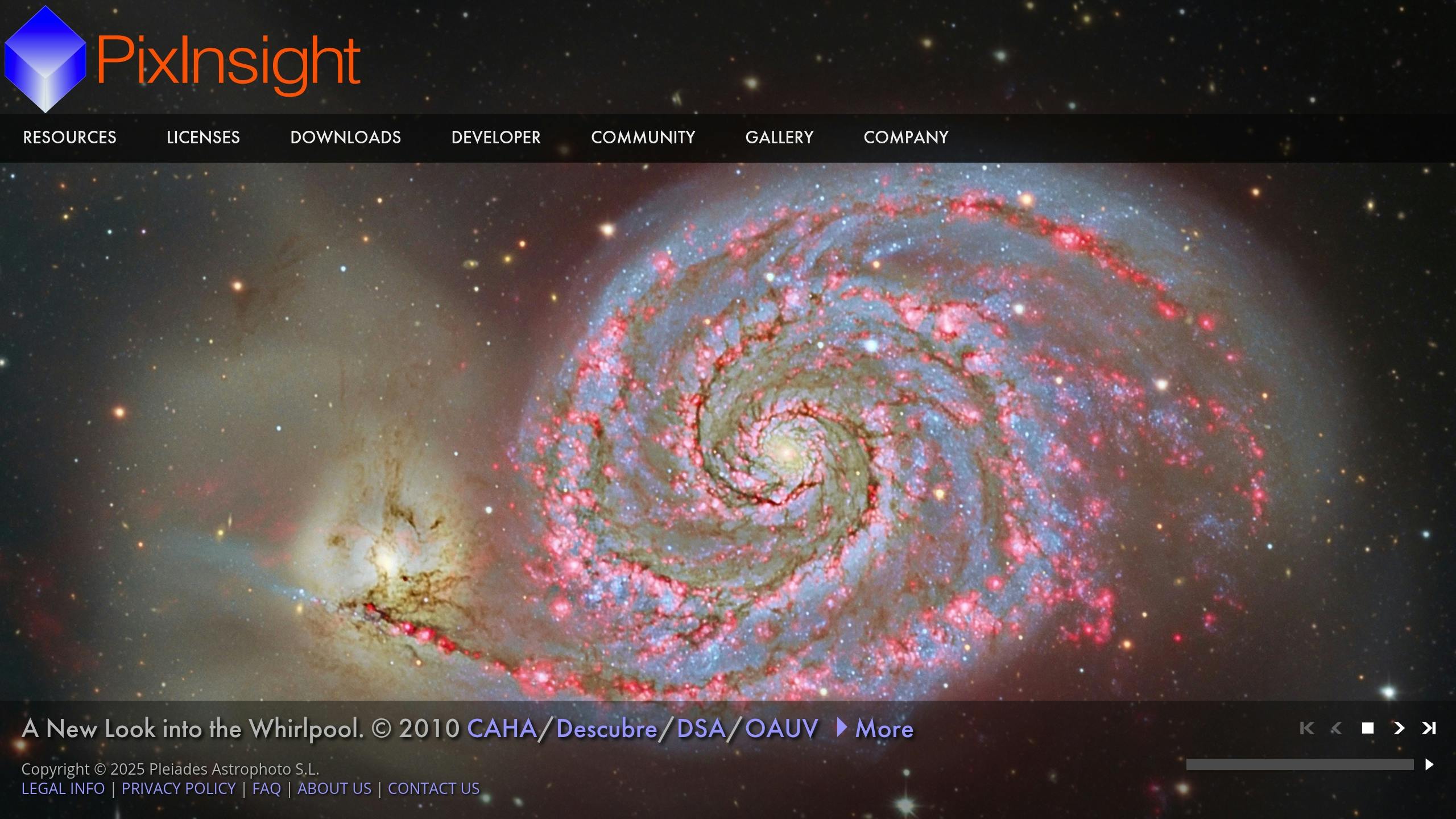
Setting Up Exposure Stacks
Once you’ve identified dynamic range issues, preparing exposure stacks becomes a key step for creating HDR compositions in PixInsight. This process requires planning and precision to achieve the best results.
Choosing Exposure Times
Capture exposures using a 1:4:16 ratio to cover the full range of brightness levels. This approach helps address common HDR issues like overexposed highlights and missing shadow details.
Calibrating Images
Calibrate each set of exposures individually with matching master frames (darks, flats, and bias) before moving on to alignment.
For alignment, use PixInsight’s StarAlignment tool with these settings:
- Choose the longest exposure as the reference frame
- Enable the "Generate drizzle data" option for potential resolution improvements
- Apply distortion correction for wide-field images
Proper calibration preserves the linear data needed for the HDRComposition tool to work effectively.
Organizing Files
Keeping your files well-organized is critical to avoid errors during HDR merging. Use clear and consistent naming conventions, such as M42_120s_Ha.fit.
To maintain linearity throughout your workflow:
- Stick to the 32-bit floating-point format
- Avoid applying any non-linear stretches
- Use LinearFit for scaling adjustments when needed
- Regularly check histograms to ensure no data is lost
When preparing subframes for integration, focus on frames that meet these criteria: FWHM < 2.5px, eccentricity < 0.6, and SNR > 10. Following these steps ensures your exposure stacks are ready for HDR composition, laying the groundwork for a high-quality final image.
PixInsight HDR Process Steps
Image Import and Alignment
Start by importing your calibrated exposure stacks using ImageContainer. Align them with StarAlignment, and then use the DynamicCrop tool to trim any border artifacts caused during registration. Before moving forward, double-check the alignment accuracy using the Blink process. Once everything is aligned, you can set up the HDRComposition parameters.
HDRComposition Settings
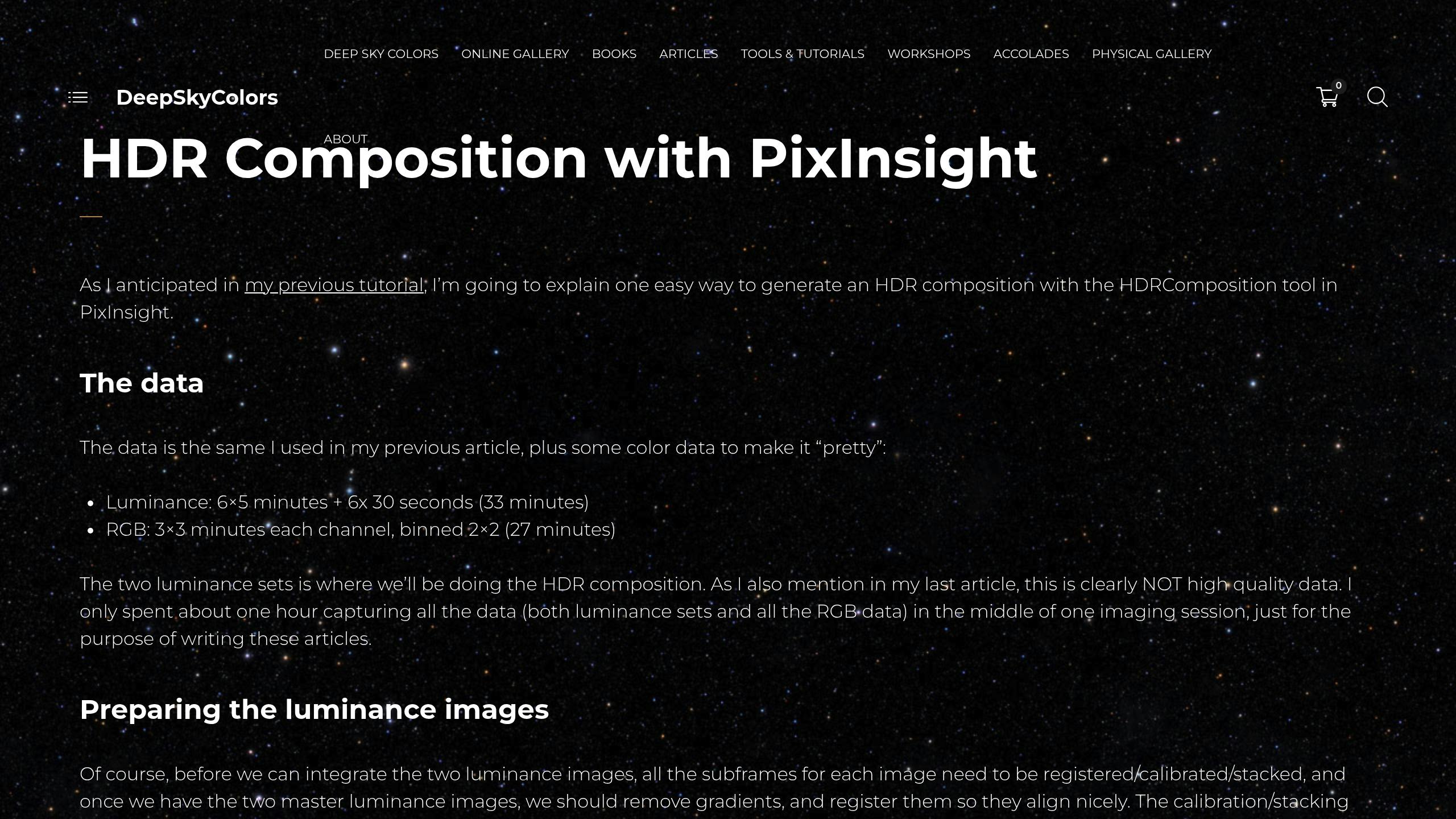
Here are the recommended HDRComposition parameters based on developer guidelines :
| Parameter | Recommended Value | Purpose |
|---|---|---|
| Mask smoothness | 0.5-2.0 | Adjusts how exposures blend together |
| Detection threshold | 0.1-0.5 | Sets exposure difference sensitivity |
| Auto scale | Enabled | Automatically normalizes exposures |
| Median scale rejection | 3-5 sigma | Removes statistical outliers |
For scenes with extreme brightness contrasts, consider using ExposureCombination first. Then, apply HDRComposition for a more refined result .
Quality Control and Fixes
Use the ScreenTransferFunction to inspect different intensity ranges and assess the composition quality. If you notice common issues like halos around bright stars, you can address them with the following methods:
- Apply LocalHistogramEqualization with large kernels to even out contrast between exposure regions.
- Fix persistent edge artifacts using the CloneStamp tool for precise corrections.
- Use the RangeSelection process to isolate and address problem areas that need extra care .
These adjustments ensure your image is ready for further refinement using dynamic range tools in the next steps.
sbb-itb-9161f90
Final HDR Image Refinement
After merging aligned exposures with HDRComposition, take these steps to fine-tune your HDR image:
Adjusting Dynamic Range
To manage extreme brightness variations, use HDRMultiscaleTransform with 6-8 layers and a strength setting around 0.85. This helps refine the initial HDRComposition results by compressing intense brightness differences. For localized contrast adjustments, try LocalHistogramEqualization, tweaking the kernel radius and contrast limits for precise control.
Managing Noise
Noise reduction should match the processing stage (linear or stretched):
-
Linear State:
- Apply TGVDenoise with a low-contrast protection mask to smooth background noise while keeping important details intact.
- Use MultiscaleLinearTransform to target noise at specific spatial frequencies.
-
Non-Linear State:
- Use ACDNR to address noise in specific luminance ranges effectively.
Balancing Colors and Integrating RGB
Preserve the HDR image’s integrity while working on color adjustments:
- Background Neutralization: Choose a background reference area free from stars or nebulosity to eliminate initial color casts.
- Color Calibration: Use PhotometricColorCalibration for accurate results. If you’re working with DSLR data, process each color channel separately .
- Color Fine-Tuning:
- Remove any lingering green tones with SCNR.
- Adjust saturation using the CurvesTransformation tool with its RGB/K controls.
- Improve contrast within specific color ranges by applying HDRMultiscaleTransform.
This process helps you achieve well-balanced and visually appealing colors in your HDR image.
Expert Tips and Solutions
Tackle persistent HDR challenges with these practical techniques from experienced astrophotographers:
Star Bloat Correction
Once you’ve adjusted the dynamic range and color balance, focus on fixing any star bloat. Use StarNet++ to create a detailed star mask that isolates the stars in your image. Then, blend short-exposure data into the bloated areas to match star sizes visually. This method keeps the stars looking natural while retaining the HDR benefits across the rest of your image.
Mask Growth Adjustment
Leverage the HDRComposition preview tool to fine-tune transitions between exposure levels. Gradually adjust growth values by 1 to 3 pixels while using the real-time preview to check results. To smooth out harsh edges, apply mask feathering with a 3-5 pixel radius, ensuring seamless blending across exposure layers.
Sat ND Telescope and Astrophotography Resources
This platform offers tutorials tailored to HDR challenges, such as managing overexposed nebula cores and capturing faint structures. Key topics include:
- Advanced masking techniques with MultiscaleLinearTransform
- Step-by-step guides for handling complex HDR workflows
Their community forums are a goldmine of tips from seasoned astrophotographers who share methods for tackling difficult targets. Additionally, their equipment guides can help you optimize your setup for better HDR data capture.
Summary
After completing the HDR workflow, keep these key points in mind:
HDR Process Overview
PixInsight’s HDR composition combines multiple exposures to bring out celestial details across a wide range of brightness levels while maintaining linear data integrity . Success in this workflow starts with well-prepared images – linear, calibrated frames built on earlier calibration and alignment steps.
Expanding Your Skills
Improve your HDR processing skills by practicing with a variety of astrophotography targets. Expert Tips from Sat ND Telescope and Astrophotography provide tutorials tailored to tough situations, such as handling overexposed nebula cores or capturing faint structural details .
The HDR composition process continues to grow through shared techniques and tools within the astrophotography community. Stay engaged, experiment often, and refine your understanding of how different exposure combinations shape the final result.
FAQs
If you’re diving into HDR composition, here are answers to some common questions:
How do I use HDR composition?
To work with HDR composition in PixInsight, follow these steps:
- Prepare Your Stacks: Load your pre-aligned exposure sets into HDRComposition. Stick with the default settings for a smooth start.
- Evaluate Dynamic Range: Use the ScreenTransferFunction to get a sense of the image’s dynamic range.
- Apply Multi-Scale Processing: Run HDRMultiscaleTransform, adjusting the layer settings as recommended for optimal results.
These steps build on earlier processes like calibration, alignment, and file management, ensuring you maintain details even in scenes with extreme brightness differences.
